 dc
c7626b2797
dc
c7626b2797
browser_info and browser_url_vars were only described inside the troubleshooting
page, under Support Diagnostics. That is the right place to find them if you
already know they exist and are looking for a log line; it is not where anyone
looks when writing a hook, which is what they are mostly for.

The new Developer Guide page carries the whole subject: which services receive
the two tables, the column lists, the debug values per platform and the MPEINIT
log lines, reading them from a hook with the exist() guard, and the reminder that
they are client-supplied and so diagnostics rather than a security boundary.

Troubleshooting keeps three stub headings - browser_info, browser_url_vars,
reading-them-from-a-hook - pointing at the page, so the anchors that are already
published keep resolving, and the detail is not maintained twice.

Linked from the three places a hook author actually starts: the HOOK Scripts
section of the MPE_TABLES page, the pre-edit hook guide (where the editor's
inputs are listed), the two-rule-sets guide (post-edit hook), and the VA embed
page, where embed=va is exactly the kind of thing a hook wants to branch on.
9.2 KiB
layout, title, description, og_image
| layout | title | description | og_image |
|---|---|---|---|
| article | Troubleshooting | Descriptions of common issues when working with Data Controller, and steps for resolution. | https://docs.datacontroller.io/img/cannotimport.png |
Data Controller for SAS® - Troubleshooting
Overview
Let us know if you experience an installation problem that is not described here!
max number of active processes has been reached for the user
On Viya versions 2025 or later you may get the following message in the network response:
Unable to create compute server session. Unable to complete the launch request, max number of active processes has been reached for the user: user=USERNAME limit=10
This limit should be set to at least 20 or 30 due to the way the sasjs/adapter works (by prelaunching sessions to improve responsiveness).
A guide for making the configuration change is available here.
Internet Explorer - blank screen
If you have an older, or 'locked down' version of Internet Explorer you may get a blank / white screen when navigating to the Data Controller url. To fix this, click settings (cog icon in top right), Compatibility View settings, and uncheck Display intranet sites in Compatibility view as follows:

Workspace Server Type Only
Data Controller requires the OS account to have disk write privileges for a number of reasons:
- log capture
- folder creation (initial setup)
- table creation (demo version)
- writing staging data (editors)
- updating databases / datasets (approvers)
On Viya, this is the default case.
On SAS 9, if your Stored Process Shared Server account (typically sassrv) is unavailable, or overly restricted, you may need to use a Workspace Server account for your STPs. This means that your Approvers must have the requisite access to perform the database updates.
The imported version of Data Controller is set up to work with the Stored Process Server. To switch this to Workspace Server, you can run the following code after importing the SPK:
/* get the macros (or download / %include seperately) */
filename mc url "https://raw.githubusercontent.com/sasjs/core/main/all.sas";
%inc mc;

/* put the path to your Data Controller folder here */
%let DCROOT=/YOUR/META/PATH/DataController;

/* this will extract all the objects in that folder */
%mm_getfoldertree(root=&dcroot, outds=stps)

/* this creates the program to update all the STPs in that folder */
filename tmp temp;
data _null_;
  set stps;
  file tmp;
  if publictype='StoredProcess' then do;
  str=cats('%mm_updatestpservertype(target='
   ,path,'/',name,',type=WKS)');
  put str;
  end;
run;

/* run the program */
%inc tmp;
Custom Library
If you wish to change the default libref or libname then there are TWO items to configure:
-
The library itself
-
The
mpelibmacro variable and the libname statement in the/Admin/Data_Controller_Settingsstored process.
!!! note Be sure to make this change after running the configurator, to ensure the tables are first registered!
Permission is needed to access the ServerContext Object
After a successful install, your business user may see the following message:

Error obtaining stored process from repository
Permission is needed to access the ServerContext object attached to the stored process.
The reason is that the context chosen when importing the SPK (perhaps, SASApp) is not available to your business user. It's likely you have multiple contexts.
The SPK must be re-imported with the correct context chosen. This may require regenerating the tables, or adjusting the permissions, if the new context uses a different system account.
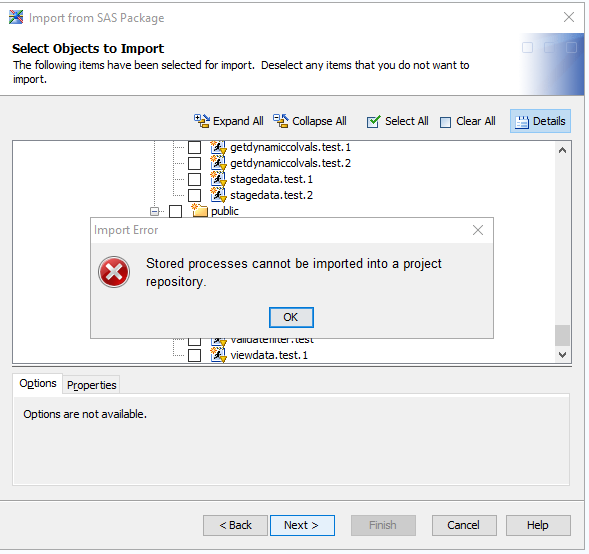
Stored Processes Cannot Be Imported Into A Project Repository
During the SPK import on a SAS 9 instance you may see the following dialog:

Stored processes cannot be imported into a project repository
This can happen when importing with Data Integration Studio and your user profile is making use of a personal project repository. Try re-connecting with the Foundation repository, or import with SAS Management Console (which does not support project repositories).
There is no LogicalServer of the type requested associated with the ServerContext in metadata.
This can happen if you enter the wrong serverName when deploying the SAS program on an EBI platform. Make sure it matches an existing Stored Process Server Context.
The error may also be thrown due to an encoding issue - changing to a UTF-8 server has helped at least one customer.
Displayed timestamps are in UTC (or the wrong timezone)
Data Controller records timestamps (such as the SUBMITTED column on the Submitted screen, and the audit history) using the SAS session clock, via the datetime() function. That function returns the time of the operating system, adjusted by the TIMEZONE= system option if it is set. The value is then displayed in the frontend exactly as stored, without conversion.
On Viya, the SAS compute sessions that run Data Controller jobs are started inside Kubernetes containers whose clock is UTC by default, and which inherit no timezone from the host machine. If the TIMEZONE= option is not set for the compute context used by Data Controller, every timestamp DC records and displays is UTC. Other SAS products can appear unaffected because clients such as SAS Studio create their own compute sessions and pass the browser timezone / locale, whereas Data Controller submits jobs to its own shared compute context, which gets the raw container clock.
To confirm the current state, run the following in a SAS session under the Data Controller compute context (or check the DC job log, where _DEBUG output shows the same values):
proc options option=timezone;
run;
%put &=SYSTIMEZONEIDENT &=SYSTIMEZONEOFFSET;
If TIMEZONE is blank (and SYSTIMEZONEOFFSET is 0), the session is on UTC. To fix it, ask your Viya administrator to set the timezone for the compute context used by Data Controller (in SAS Environment Manager, edit the context's Autoexec, or set the context's SAS options):
options timezone='Europe/Berlin';
Then recycle any existing compute sessions - hot sessions keep the old setting until they terminate.
!!! note
Use a region/area time zone ID such as Europe/Berlin rather than a fixed offset such as GMT+2. Fixed offsets do not follow daylight saving time, so the display would be 1 hour off in winter (CET = UTC+1).
!!! note Changing the timezone affects new timestamps only. Previously recorded submissions keep the UTC values that were stored when they were created.
Determining Application Version
The app version is bundled into the frontend during the release, and is visible by clicking your username in the top right.
You can also determine the app version (and SASjs Version, and build time) by opening browser Development Tools and running appinfo() in the console.
The app does not start - Show log
A startup failure shows a modal with the error and the service that failed. When that service is public/startupservice, the modal offers Show log, which opens the service in a new browser window with _debug=131, so the SAS log is the page body.
The button exists because of how Viya runs a request from JavaScript: it can go through a Compute execution task (_executionTasks=true), where the log is not returned and the request can time out before the service finishes. The browser request runs the same stored program without a task, so the log is available even when the adapter got nothing back. On SAS 9 it opens the stored process, and on SASjs Server the route returns the service output rather than a log.
Support Diagnostics
The frontend sends two input tables with the startup service and with the services that execute customer-provided code - the hook scripts (pre/post edit and approve hooks) and the dynamic cell dropdown programs. See Browser Variables for the column lists, the log lines, how to read them from a hook, and which services receive them.
browser_info
The browser context: page URL, embedding document, timezone, locale, versions, and the user agent. Columns and examples: Browser Variables.
browser_url_vars
The page URL parameters, one row per parameter. Read a parameter by name rather than parsing the page URL - the platform's own parameters are in there too. Columns and examples: Browser Variables.
Reading the tables from a hook
Guard the read with %sysfunc(exist()) - a service called directly has no work.browser_info. Worked examples: Browser Variables.