 dc
c7bbdee3c6
dc
c7bbdee3c6
Both images on the embed page were still captured from a local sandbox with the
editor as the top-level document, so neither showed the report around it.

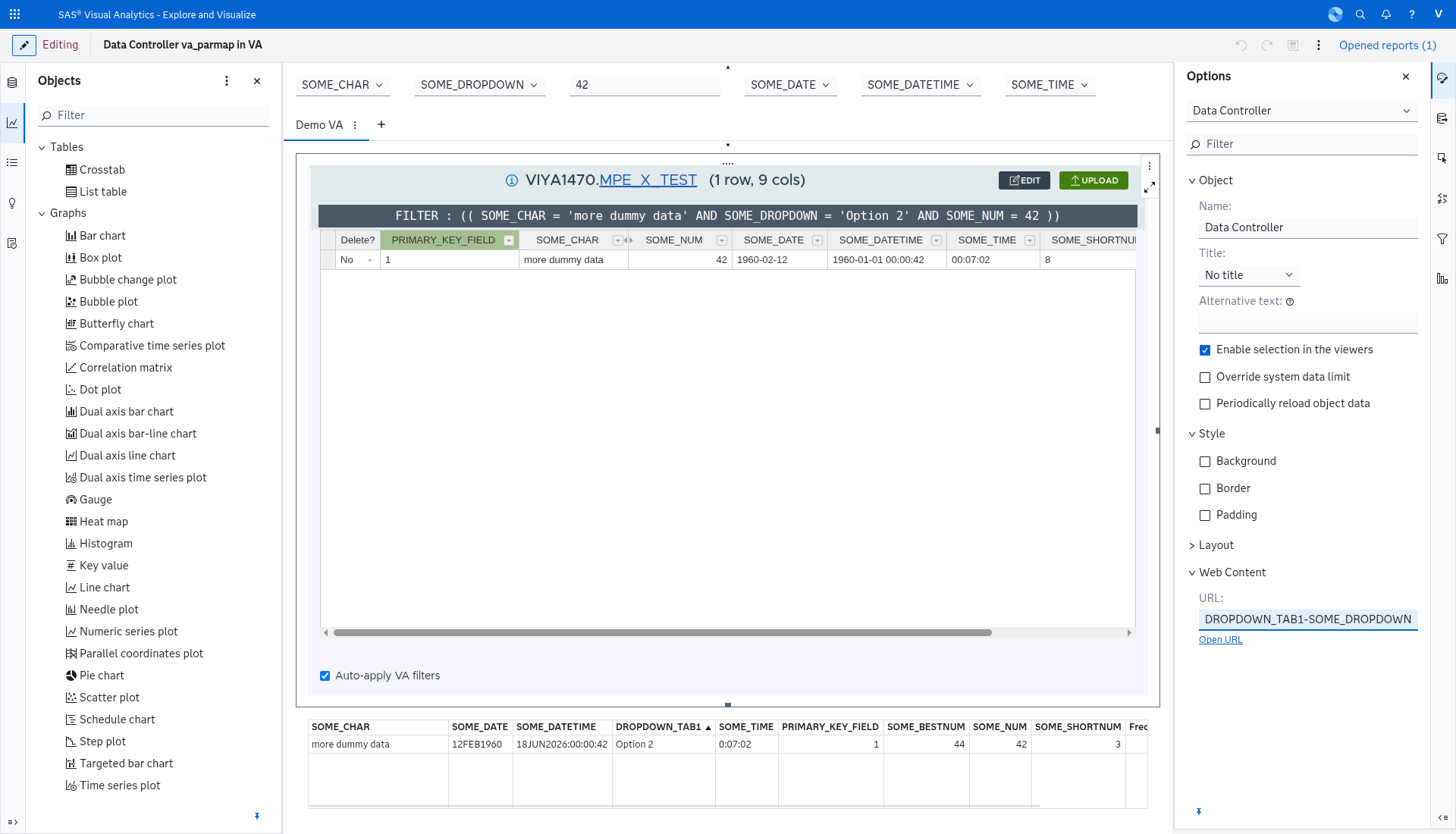
- va-parmap-filtered.png: the report viewer, prompt DROPDOWN_TAB1 (relabelled on
  the report, not matching any column) and SOME_DATE, with
  FILTER : ( ( SOME_DROPDOWN = 'Option 1' AND SOME_DATE = '01JUL1960'd ) ) over
  21 rows - the mapped parameter filtering a column that is not its name
- va-parmap-banner.png: the same object with a malformed entry
  (va_parmap=SOME_DATE, no hyphen), showing the warning banner over a populated,
  filtered grid

The caption for the mapping now says the date parameter beside it is
name-matched, which is what the picture shows.

va-parmap-transform.png is removed rather than replaced: the deployment used for
these captures predates the ADD/RANGE work, so there is no honest in-report
picture of a date anchor to take, and a sandbox capture would be the one image on
the page without the report around it. The section keeps the syntax, the anchors
and the examples table.
15 KiB
layout, title, description, og_title, og_image
| layout | title | description | og_title | og_image |
|---|---|---|---|---|
| article | SAS Visual Analytics Embed | Embed the Data Controller editor inside a SAS Visual Analytics report as a data-driven content object, so report selections drive filters and column visibility in the editor. | Embedding Data Controller in SAS Visual Analytics | https://docs.datacontroller.io/img/va-embed-og.png |
Embedding inside SAS Visual Analytics
Data Controller can be embedded inside a SAS Visual Analytics report as a data-driven content (DDC) object. This unlocks scenarios where a user can safely modify the values in an underlying SAS table, and have the visualisation updated - all from inside the same report.
URL
Open the editor as a DDC by appending ?embed=va to the editor route:
https://yourserver/DC/#/editor/<library>/<table>?embed=va
The ?embed= parameter accepts three values:
| Value | Data Controller header and navigation | Filter button | Report drives filtering and columns |
|---|---|---|---|
true |
hidden | shown - Data Controller's own filter builder works as usual | no |
va |
hidden | hidden - filtering comes from the report instead | yes |
false (or omitted) |
shown | shown | no |
The header and navigation means the Data Controller title bar (with its user menu), the back button and the sub-nav - everything Data Controller would normally show around the grid.
embed=true hides that and nothing else: the editor behaves exactly as it does outside a report, including the Filter button, Add Record, and any filtering you apply yourself.
embed=va hides the same furniture and hands these over to the report:
- filtering - the report's filters are captured and applied as selections change, in either live mode or confirm mode (see Filter Modes below). The first table load is already filtered, so there is no unfiltered flash.
- column visibility - the grid shows the columns the report sends, controlled from the report's Edit Report interface; primary-key columns are always kept visible.
- the Filter button is not offered - filtering belongs to the report in this mode.
- Add Record is not offered - rows are still added from Edit mode's "Add Row".
- a "Back to Edit table" bar appears on the stage, approve and review pages, so a user who follows the review workflow can return to the editor without knowing Data Controller's page paths.
The two filters are not combined. A filter built inside Data Controller and a filter driven by the report are alternatives, not layers: applying one replaces the other, and in va mode the report's filter is re-applied the next time the selection changes. Showing the button there would offer a filter that silently stops applying as soon as the report is touched, which is why it is hidden rather than disabled.
How VA drives the editor
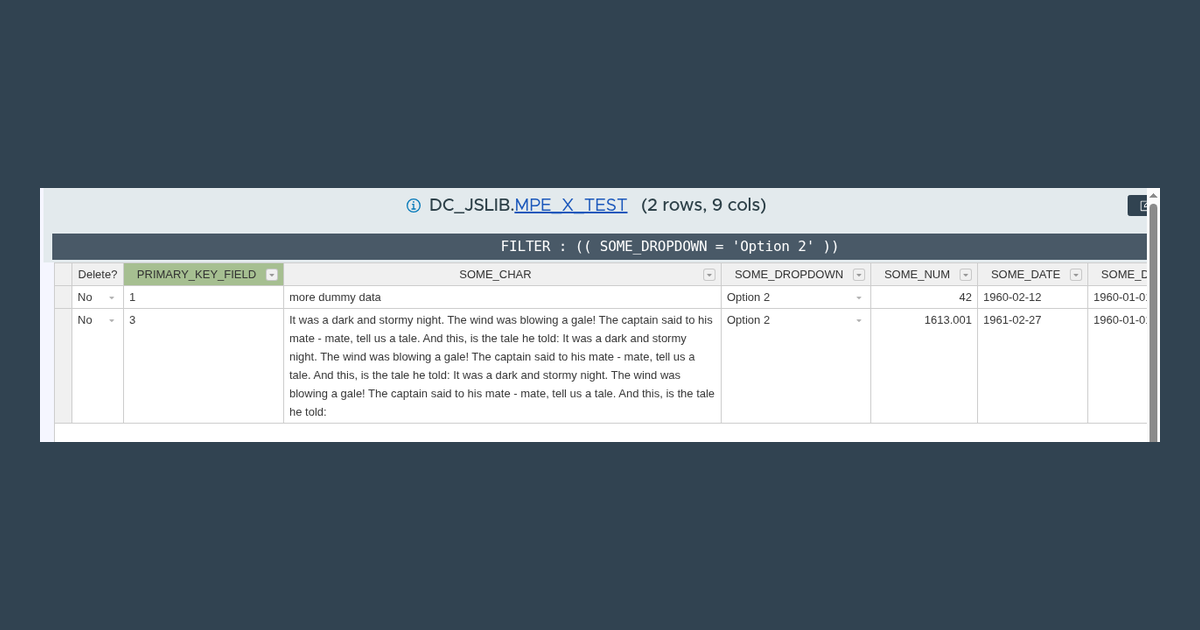
VA pushes a JSON payload to the iframe via window.postMessage whenever the selected rows change. Data Controller listens for these messages and:
- Resolves each VA
parameterto a DC column by matching on column label. - Builds a filter (using existing Filter machinery) over the selected values.
- Hides any VA columns marked as
brushso the grid stays focused on the user-editable columns (primary key columns are always shown).
If VA sends an empty / unmatched message the editor falls back to the unfiltered view but stays in VA mode.
In the report below, two report parameters - SOME_DROPDOWN and SOME_DATE - reach one Data Controller object, and the editor shows both the combined filter and the rows it matches:

More logic available in va-messaging.service.ts.
Mapping parameters to columns
By default each VA parameter is matched to a DC column by name: a parameter whose label is a column of the table filters that column. That means two DC instances in the same report can only filter the same column from a parameter of the same name - so two report tabs cannot hold different filters on one column.
The va_parmap URL parameter overrides the name match, one entry per mapping, <VA parameter>-<DC column>:
https://yourserver/DC/#/editor/<library>/<table>?embed=va&va_parmap=REGION_TAB1-REGION
Repeat the parameter to add mappings. A report with two tabs, each holding its own instance of the same table and filtering the same column from its own report parameter:
| Report tab | DDC URL |
|---|---|
| Tab 1 | ...?embed=va&va_parmap=REGION_TAB1-REGION |
| Tab 2 | ...?embed=va&va_parmap=REGION_TAB2-REGION |
The applied filter is visible in the editor, above the grid - here the parameter DROPDOWN_TAB1 filtering SOME_DROPDOWN, which is not its name (the date parameter beside it is name-matched, which is the default):

The mapping is per parameter, and additive:
- a mapped parameter always filters the column it names; that column's type in the table decides how the value is formatted, exactly as for a name match
- a parameter with no mapping keeps the default name match, so a single instance can mix mapped and unmapped parameters
- the key is matched case-insensitively against the parameter's label
- an entry is split at its last
-, so a label may itself contain hyphens (Sales-2024-DEPTmaps the labelSales-2024toDEPT) - if the named column is not in the table being opened, the parameter is ignored rather than falling back to the name match - a typo cannot silently filter the wrong column
- a column name that is not a plain SAS name is ignored
- the mapping applies to filtering only; which columns the grid displays still follows the columns VA sends
When a mapping cannot be used
A wrong mapping would otherwise look like a working filter over the whole table, so the editor puts a banner above the grid naming the parameter, the column, the table, and what to change:

Each line names one cause, and the parameter it concerns is skipped rather than falling back to the name match - a typo never silently filters the wrong column:
| What the banner says | What it means |
|---|---|
is not a column of <libref>.<table> |
the mapped column does not exist in the table being opened |
is not a date or datetime column |
a date anchor (ADD/RANGE) was applied to a column that holds something else |
VA is not sending |
no message has named that parameter - usually a spelling mistake in the parameter side of the entry |
all filter <COLUMN> ... different values will show no rows |
two parameters map to one column with different values, so the AND can never match |
a range needs one value |
a RANGE mapping was sent several values - one BETWEEN carries one period |
N of its M values was not a date |
part of a multi-value parameter could not be read as a date, so only the rest is applied |
was ignored: it needs a "-" / is not a transform |
the entry itself is malformed |
the VA parameter name is missing |
the entry starts with the -, so there is no parameter to map |
already maps to <COLUMN>, and a parameter can filter only one column |
the same parameter is mapped twice; the first entry wins |
The banner is shown to the report author, inside the report, because that is where the entry is edited: the only fix available from the editor is to change the va_parmap entries in the URL of the Data Controller object.
!!! note
A parameter label containing & must be percent-encoded (%26), because & separates query parameters. A space may be written as + or %20.
Deriving dates from a parameter value
A mapping can resolve the parameter value through a named date anchor before the filter is built, by appending a transform to the column name:
https://yourserver/DC/#/editor/<library>/<table>?embed=va&va_parmap=SELECTED_DATE-D_DATE:ADD(QUARTER_START,-1)
A report that sends SELECTED_DATE = 27FEB1961 then filters D_DATE on 1961-02-27 and 1960-10-01 - the selected date, plus the same point one quarter earlier.
The clause carries both values, so the row for the selected date and the row for the previous quarter are both included.
| Transform | Result | Filter |
|---|---|---|
ADD(<anchor>,<offset>) |
the value, plus one anchor beside it | D_DATE IN (01OCT2026, 01JUL2026) |
RANGE(<period>,<offset>) |
one closed period | D_DATE BETWEEN 01APR2026 AND 30JUN2026 |
The anchors are QUARTER_START, QUARTER_END, MONTH_START, MONTH_END, YEAR_START and YEAR_END; the periods are QUARTER, MONTH and YEAR. The offset is a whole number of periods - negative for earlier - and defaults to 0. Names and arguments are case-insensitive.
va_parmap=SELECTED_DATE-D_DATE:ADD(QUARTER_START,-1)
va_parmap=SELECTED_DATE-D_DATE:ADD(MONTH_END,-1)
va_parmap=SELECTED_DATE-D_DATE:RANGE(QUARTER,-1)
va_parmap=SELECTED_DATE-D_DATE:ADD(YEAR_START,-1)
Notes:
- the arithmetic is anchored on the parameter's value, never on today, so a saved report selects the same rows whenever it is opened
- the result is always a single filter clause, so a transform combines with other parameters exactly as an unmapped one does
- a transform only applies to date and datetime columns; on any other column the parameter is ignored and the warning banner says so
- the offset is a whole number; unknown anchors, periods and operations are rejected with a warning naming the entry
Filter Modes
When running in embed=va mode, the editor provides two filter modes, controlled by the Auto-apply checkbox:
- Live (default) - the editor updates automatically as you select rows in the VA report, so the data you see always matches your current selection.
- Confirm - filter changes are held until you click the Apply button. This is useful when editing, where an automatic reload would discard unsaved changes.
A status indicator shows whether a filter change is pending, loading, or idle. In edit mode, a pending filter is held until you leave edit mode, so your unsaved edits are never lost.
Configuration in VA
The mapping lives entirely in the URL of the report object, so the job is to get the right URL onto a Data-driven content object and make sure the parameters it names actually reach it.
-
Add the object. In the VA Report Designer, insert a Data-Driven Content object, or select the one already on the page.
-
Point it at Data Controller. Open Options on the right and paste the SAS Job Execution URL of your DC deployment into Web Content URL, with
embed=vaand oneva_parmapentry per parameter:https://yourserver/SASJobExecution/?_file=/YOUR/APPLOC/services/DC.html#/editor/YOURLIB.YOURTABLE?embed=va&va_parmap=REGION_TAB1-REGIONEverything before the
#is the normal deployment URL; the#/editor/...part is the DC route, and?embed=vaplus theva_parmapentries are what this page describes. One object per report tab, each with its own entry, is what lets two tabs filter the same column differently.The URL is a property of the object, not a data source: it lives in Options > Web Content > URL, and the object needs no data assigned for Data Controller to open its own table. In the designer that section looks like this (the field is scrolled to the end of a long URL):
-
Make the parameter reach the object. VA sends an object only the parameters its query uses. A report parameter that the object's data does not reference never arrives, and the mapping then has nothing to map - DC reports it as
VA is not sending ...in the banner. So bind the parameter into the object (assign it as a source on the object's query, as you would for any other visual), rather than only defining it at report level. -
Save the report, then open it. DC shows the applied filter above the grid, so a correct mapping is visible without opening the editor:
FILTER : ( ( REGION = 'Europe' ) )A date parameter arrives as a display date and is rendered as a SAS date literal, the same as a date filter built inside Data Controller:
FILTER : ( ( SOME_DROPDOWN = 'Option 1' AND SOME_DATE BETWEEN '01JAN1960'd AND '31MAR1960'd ) )Something wrong shows the banner instead, with the cause and the fix - see When a mapping cannot be used above.

!!! note
The URL is read when the object loads, so a change to va_parmap takes effect when the report (or the page holding the object) is next opened.
Who the object runs as
The object runs as the person viewing the report, using their SAS identity - there is no service account behind it. That person must therefore be a registered Data Controller user: if they are not, DC shows its login card inside the object instead of the editor, which looks like a broken embed rather than a permissions matter.
Register everyone who will open the report before you ship it (Users in DC), and test the report as one of them rather than as the person who built it - the author often has elevated permissions, so a report that works for them can fail for everyone else.
The deployment itself has to be licensed and past its End User License Agreement before it is embedded, for the same reason: an unlicensed instance shows the licensing screen (the agreement, then the free tier until a key is uploaded) inside the object, which reads as a broken embed rather than as setup that was never finished. Accept the agreement and register the key by opening the deployment directly, then reload the report.
Debugging
A hook script can tell an embedded editor from a standalone one without any client-side inspection: work.browser_info carries the page URL and referrer, and work.browser_url_vars carries embed=va. See Browser Variables.
The following snippet can be used in console to dump the values being provided to DC from VA:
console.log(JSON.stringify(window.__vaLastMessage?.data, null, 2))
Each entry in its parameters array carries a label, and that label is what a va_parmap entry has to match (and what the name match uses when there is no entry). When a mapping appears to do nothing, compare the labels in this dump with the left-hand side of the entries in the object's URL - a parameter that VA labels differently from what was typed in the URL is silently a different parameter.